
Club Billing - Financial Reports
The financial report is the perfect place to come and get all the information you need regarding your club's billing in Commit.
The financial report only shows you electronically captured payments - any invoices that are voided or marked as paid (via check, cash, etc.) are not displayed in the financial report.
To create a financial report you will need to first make sure you have financial permissions.
If you do not, you will be unable to complete this task.
Go to your REPORTS menu and the FINANCIAL tab.
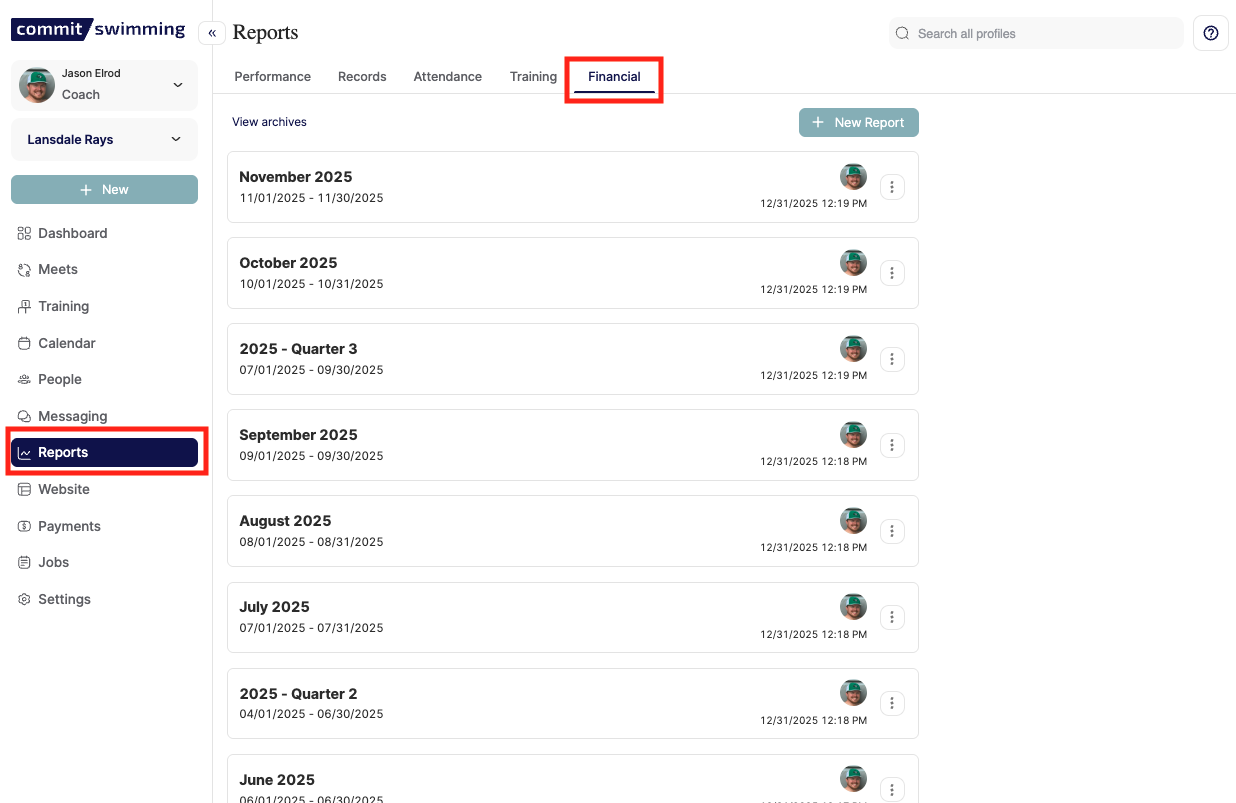
Then click NEW REPORT to set your date range and name of the report.
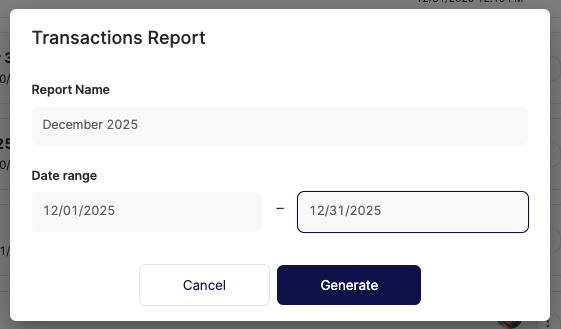
The date range will capture all electronic payments that were completed in that date range.
The wider the time period, the longer the report will take to generate - please be patient while this step completes.
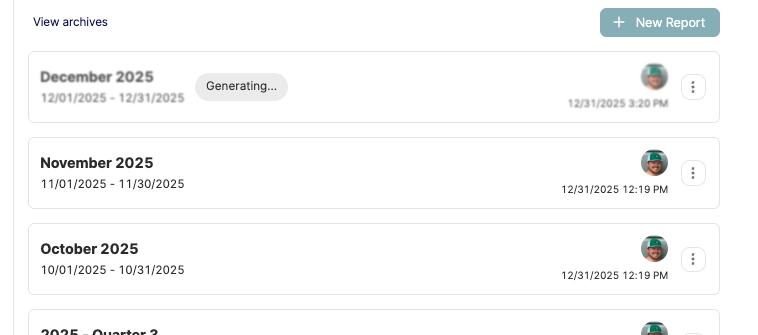
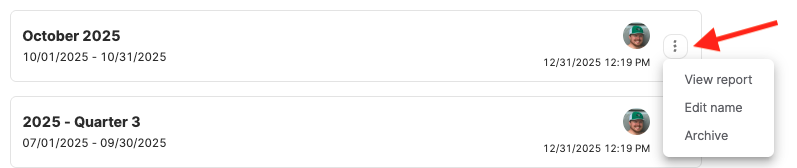
Once it is ready you can then click on the report to view it - or click the ACTIONS menu (the 3 dots) to rename the report, view it, or archive it.
The report will also include information about who created the report:
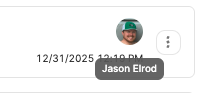
and what date and time the report was generated.
Note: This date and time is important, as the report will not retro-actively update if changes are made. (i.e. refunds, credits, etc.) Meaning it is a snapshot of the financial data for the report's timeframe at that exact date and time the report was created.
So if you know changes have happened, it is recommended to archive the report and generate a new one for the same time period to get the most up-to-date information.

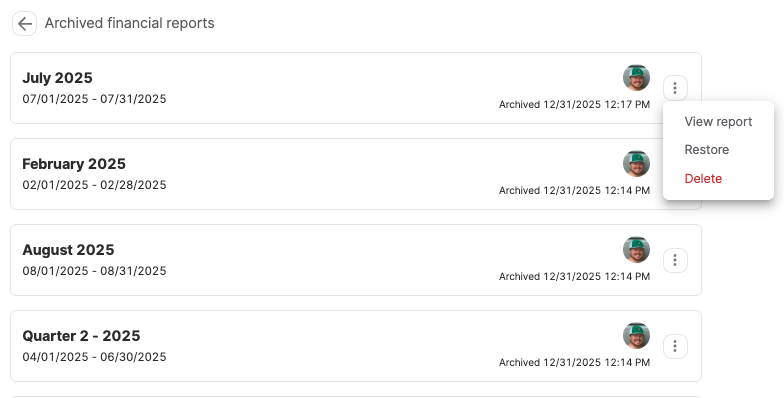
To view any past, archived reports click VIEW ARCHIVES. You will be able to view all the archived reports, restore them, or delete them permanently.
Now you are ready to view the report!
Click on the financial report you wish to view and it will open up a window to view and search all the data.
You will have 2 views for the report:
INVOICE VIEW
This will break down every single line item on an invoice. So you will see multiple lines for the same invoice.
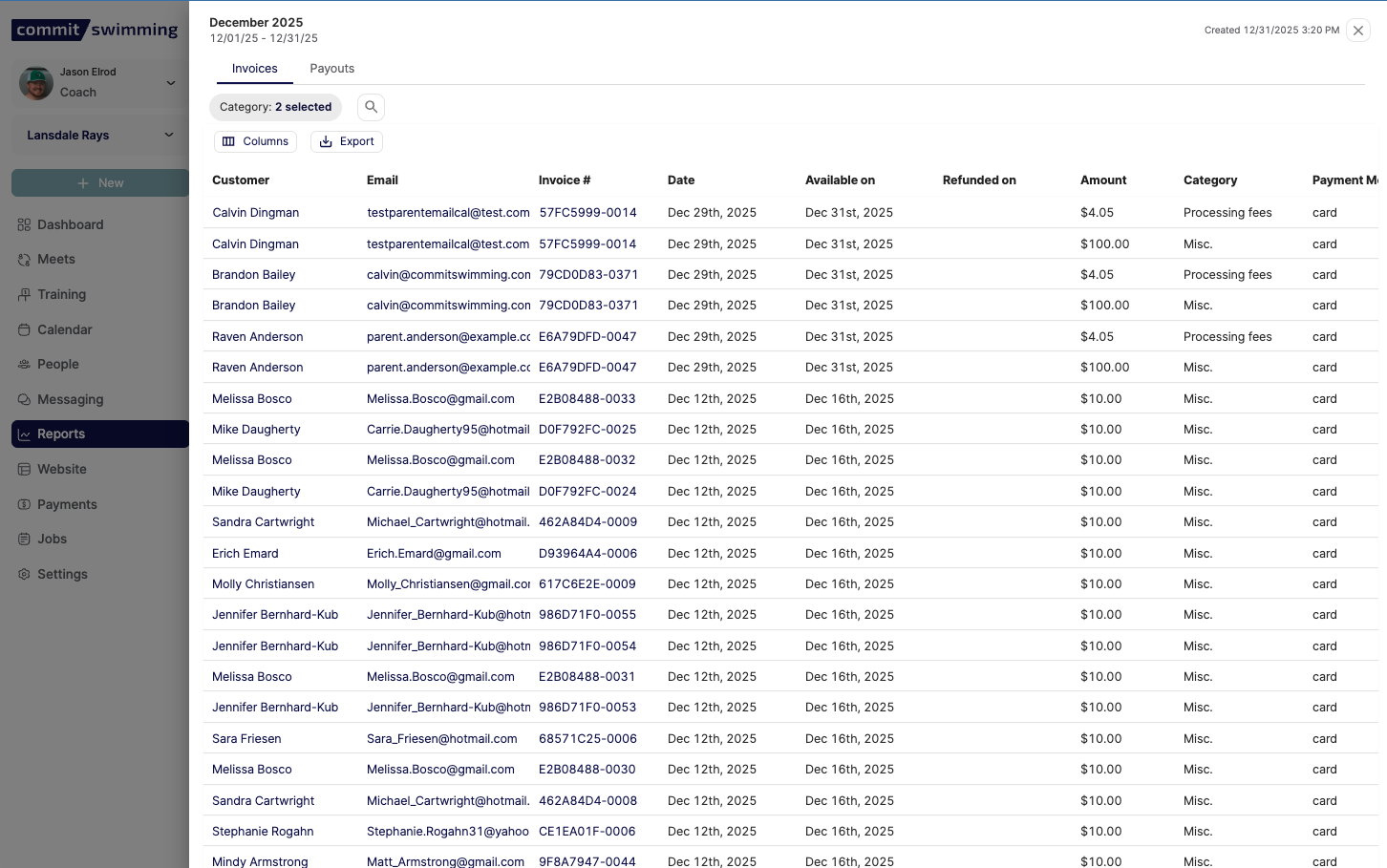
These include categories like:
- Practice Fees - These are recurring monthly/annual fees that your members pay as part of your programs/registrations.
- Registration Fees - These are the one-time fees you can elect to charge when members sign up for a registration group (these are non-recurring charges)
- Meet Entry Fees - These are fees associated with any meet entries you run for the club
- One-Off Payments - These are fees associated from one-off payments you run.
- Refunds - You will see refunds for different charges if a refund was issued
- Customer Credit - This will show any credit applied to an invoice from a member's credit history (if they had credit on their account)
- Discount - This will show any amount that was taken off an invoice if a coupon was applied.
- Misc. - These are charges related to an invoice you manually billed directly to member.
- Processing Fees - This will be for any processing fees your members have to pay (this only shows up if you pass those fees on to your members)
- Network Fees - This is the processing fees taken out while going through Stripe, our payment network. (this will always happen - regardless of whether your members pay the fees or not.)
You can toggle these on or off in the CATEGORY menu:
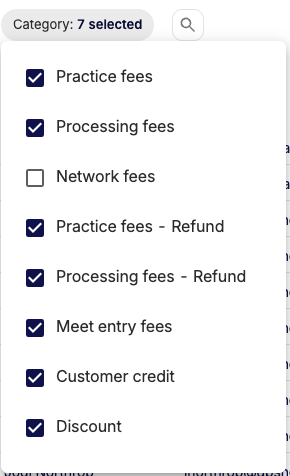
QUESTION: Can I customize the categories for my club's billing?
ANSWER - No, categories cannot be customized. These are preset.
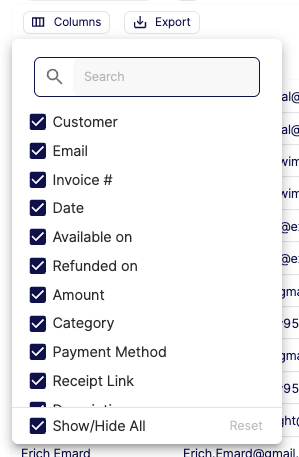
You can also narrow down what information is shown on the sheet for the records of payment.
You'll do this under the COLUMNS option.
- CUSTOMER - This will show the customer account's name (not the swimmer, but the name listed directly on the billing account) You can click on this to open the account.
- EMAIL - This will show the email address associated with the member's customer account. This is where any receipt, invoice, or other billing notices get sent. You can also click on this to open the account.
- INVOICE # - This will show you the invoice number the charges were part of. You can click on this to open a preview of the invoice and see the receipt.
- DATE - This will be the date the payment happened and went into the Stripe account.
- AVAILABLE ON - This will be the date the payment will be paid out to your bank account.
- REFUNDED ON - This will be the date this invoice was refunded, if it has a refund.
- AMOUNT - This will be the amount of the individual line item.
- CATEGORY - This will show you which category the charge is related to.
- PAYMENT METHOD - This will indicate if the payment was on a card or a bank account. (Which impacts the network fees)
- RECEIPT LINK - You can click on this to open a preview of the invoice and see the receipt.
- DESCRIPTION - This will give you more information about the line item - what is it from directly (Meet Entries, Which Registration Group, etc.)
- ADDITIONAL - This will give you broader information about the charge (Which meet, which program, was it a "cumulative invoice" for the month, etc.)
- TEAM - This will show you which team the charges are for. Most cases this is your main team - but if you have a Stripe account set up to be used across multiple teams, all transactions from all teams will show on this report and be indicated by that here.
- STRIPE ACCOUNT - This will show you the Stripe Account Number for your team. This is where your club collects funds into and gets paid out to your account. (If you have multiple stripe accounts for the same team - you will see the different account number here)
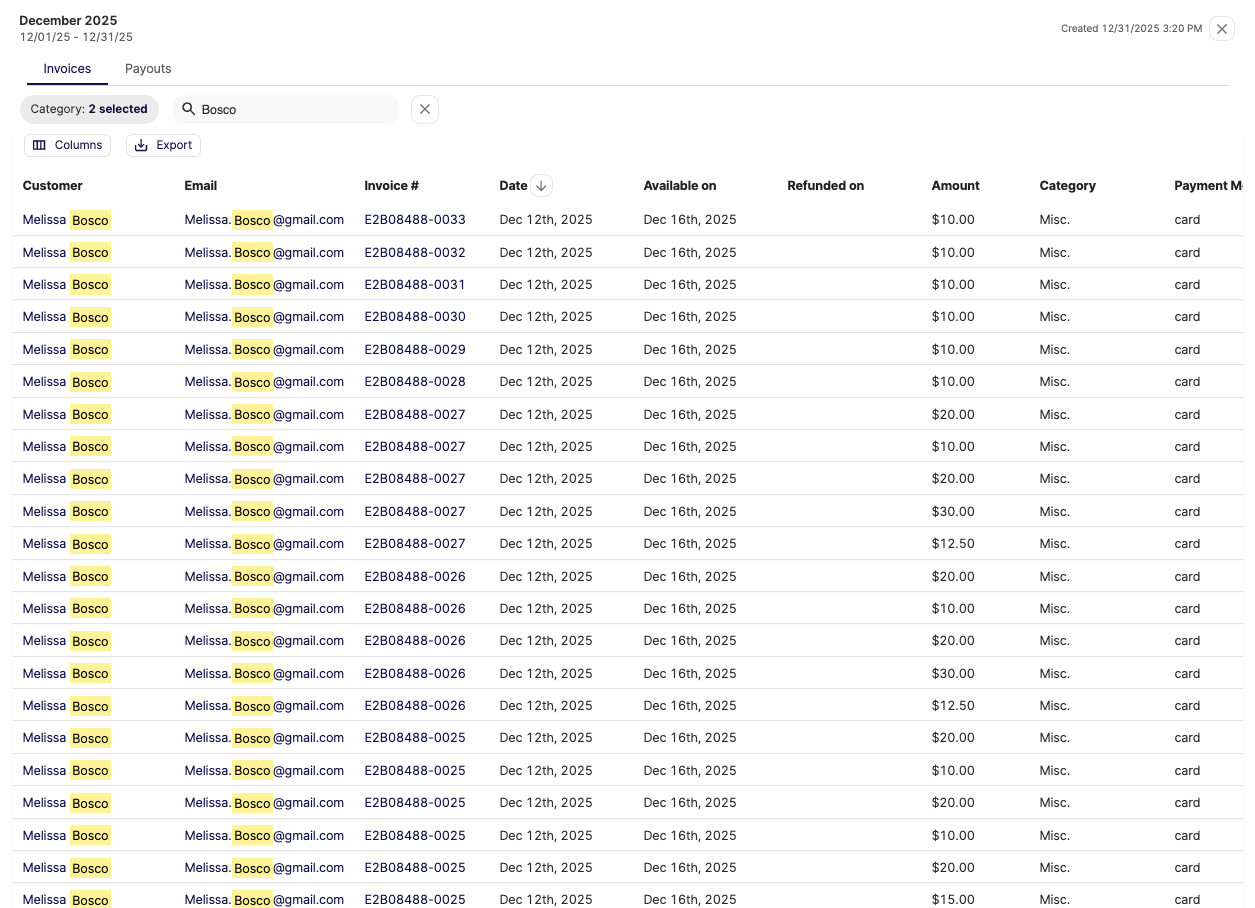
You can also search and narrow down to individual times of charges.
You could search for specific members (this is how you will get individual billing reports for a member)
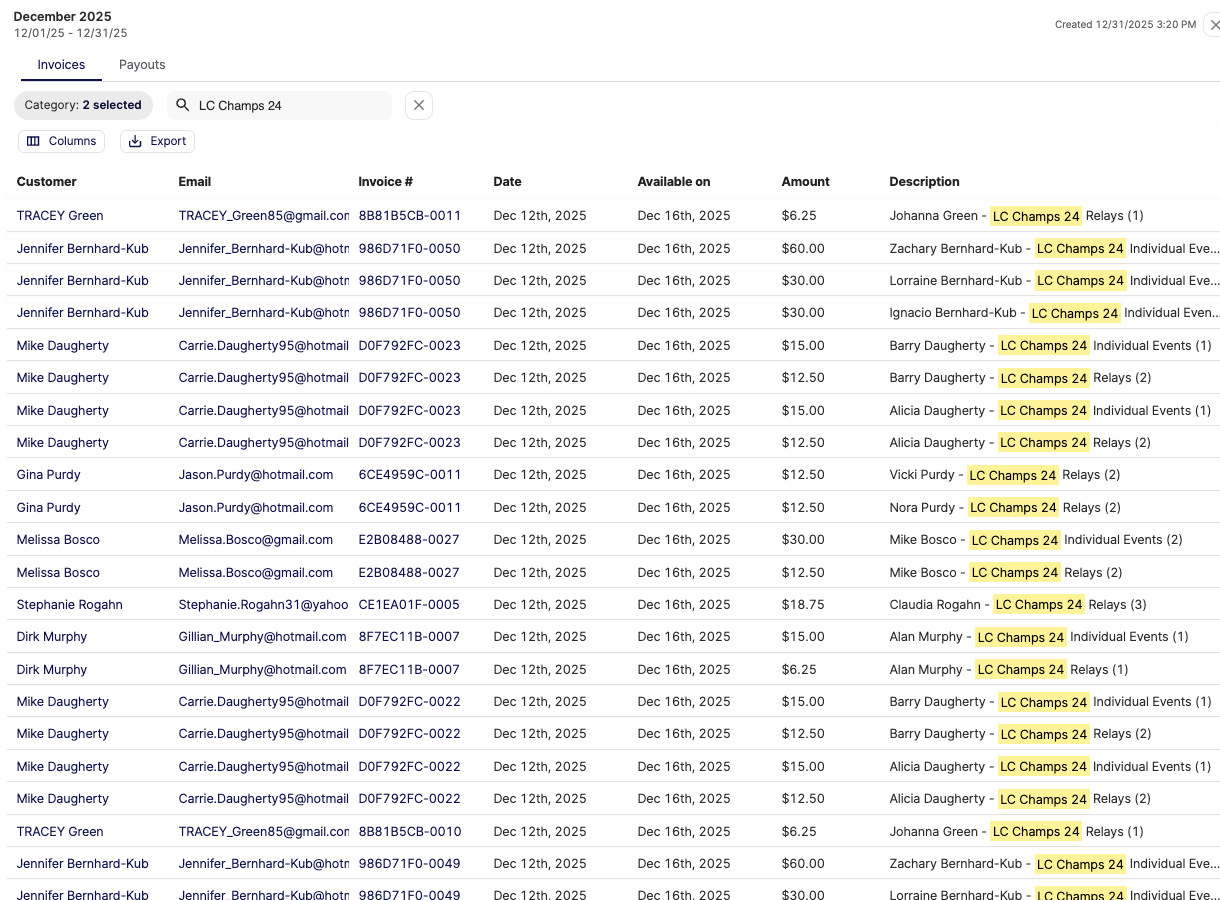
Or you can get a snapshot for specific programs or meets over this month:
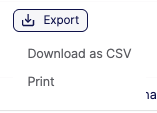
Then when you are ready - you can export the report into either a PDF or a Spreadsheet.
The export will ONLY contain the data you have on screen - so any categories or columns you add or remove and any search items you narrow down to will be all that is included in the report.
QUESTION: Will my settings for the report be saved if I leave and come back later?
ANSWER - If you close the report or the window, the filters/settings do not save. You will need to reset them.
PAYOUT VIEW
This will be similar to your invoice view, but it shows lump amounts for your invoices (not broken down line items) and it will show you the actual amounts paid out to your bank account.
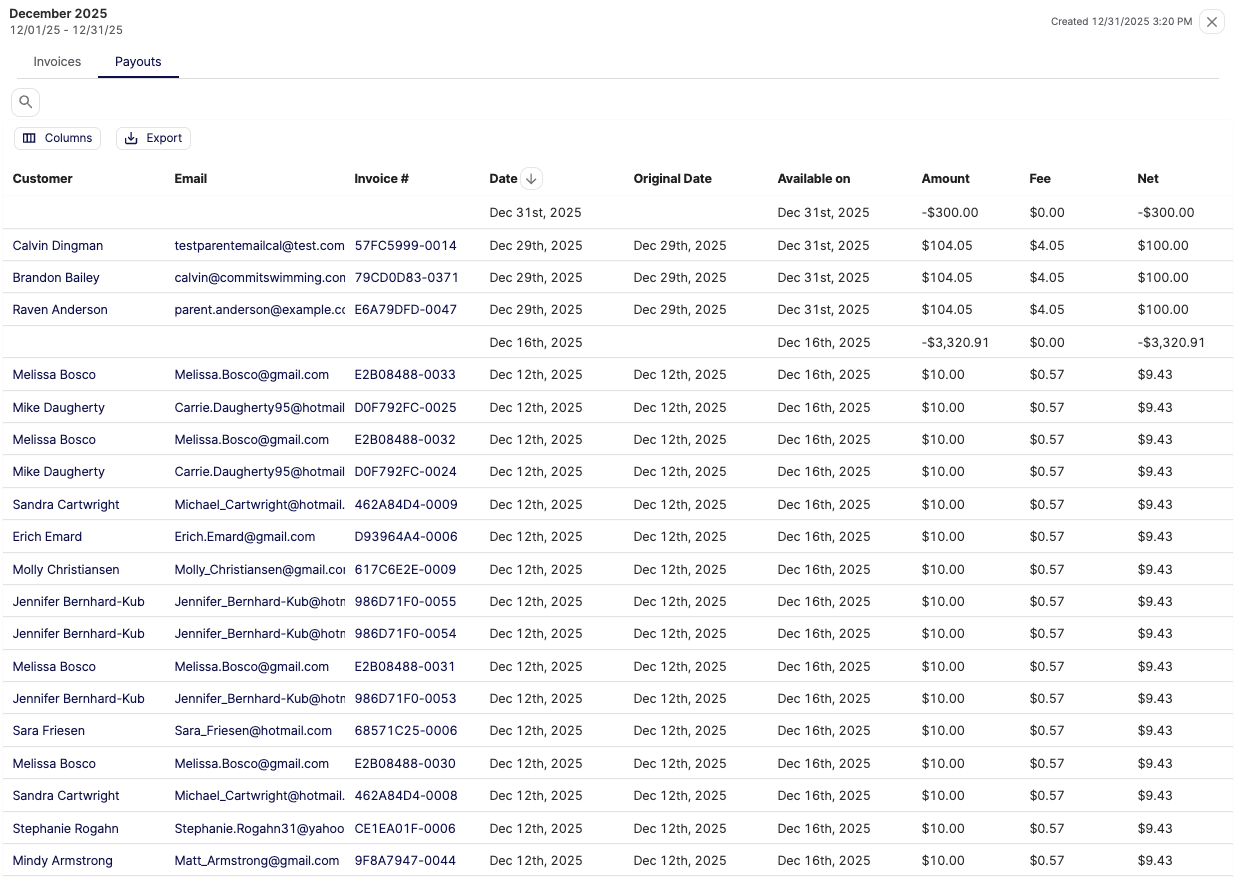
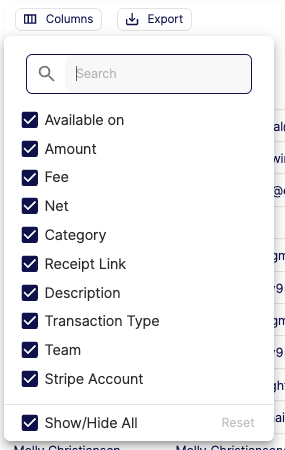
This won't include a way to remove categories - but it will allow you to still narrow down columns.
These columns include:
- CUSTOMER - This will show the customer account's name (not the swimmer, but the name listed directly on the billing account) You can click on this to open the account.
- EMAIL - This will show the email address associated with the member's customer account. This is where any receipt, invoice, or other billing notices get sent. You can also click on this to open the account.
- INVOICE # - This will show you the invoice number the charges were part of. You can click on this to open a preview of the invoice and see the receipt.
- DATE - This will be the date the payment happened and went into the Stripe account.
- ORIGINAL DATE - This will show you the date of the original charge (which is best for tracking things like refunds that may not happen until a later date)
- AVAILABLE ON - This will be the date the payment will be paid out to your bank account. For invoices this should match to a PAYOUT that is for the same date, meaning the charge from that invoice is including the full amount of the payout.
- AMOUNT - This is either the full amount of the invoice (including processing fees if you have your members pay, but also account for all discounts and credits applied to it) or the full amount of the payout sent to your bank on that day.
- FEE - This is the amount of the fees taken out when the payment went through the Stripe to be added to your Stripe account.
- NET - This is the final amount sent to your Stripe account from the invoice and/or the amount of the payout sent to your bank.
- CATEGORY - This will show you which category the charge is related to.
- RECEIPT LINK - You can click on this to open a preview of the invoice and see the receipt.
- DESCRIPTION - This will give you more information about the line item - what is it from directly (Meet Entries, Which Registration Group, etc.)
- TRANSACTION TYPE - This will indicate if it was a charge (incoming payment to your stripe account), payout (outgoing payment from Stripe to your bank), or refund (returned funds to your member)
- TEAM - This will show you which team the charges are for. Most cases this is your main team - but if you have a Stripe account set up to be used across multiple teams, all transactions from all teams will show on this report and be indicated by that here.
- STRIPE ACCOUNT - This will show you the Stripe Account Number for your team. This is where your club collects funds into and gets paid out to your account. (If you have multiple stripe accounts for the same team - you will see the different account number here)
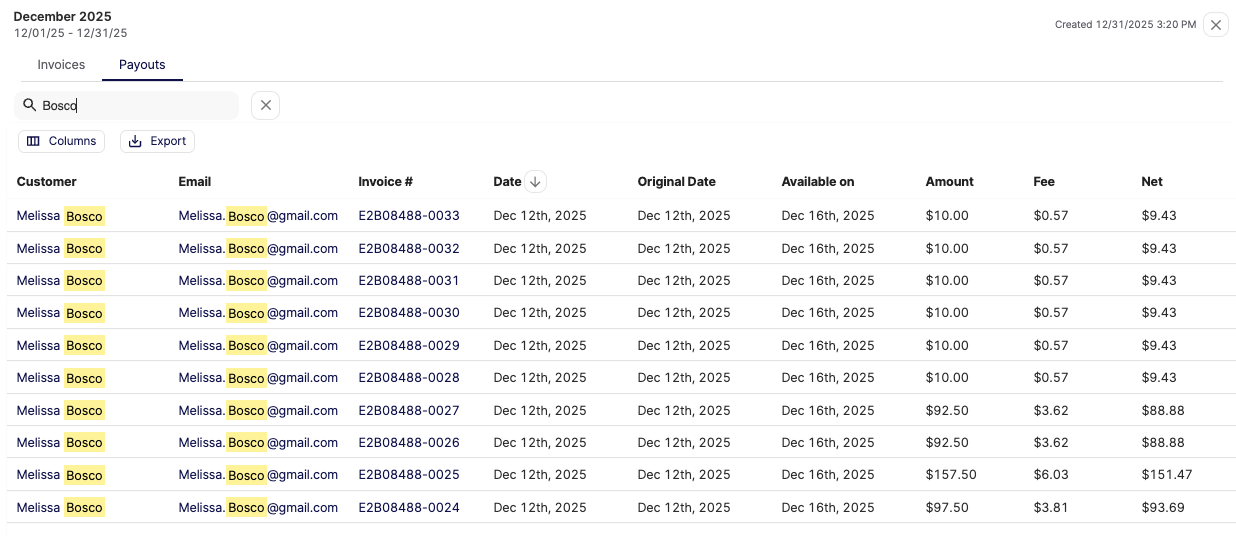
Just like with the invoices, you can also search and narrow down to individual times of charges.
You could search for specific members.
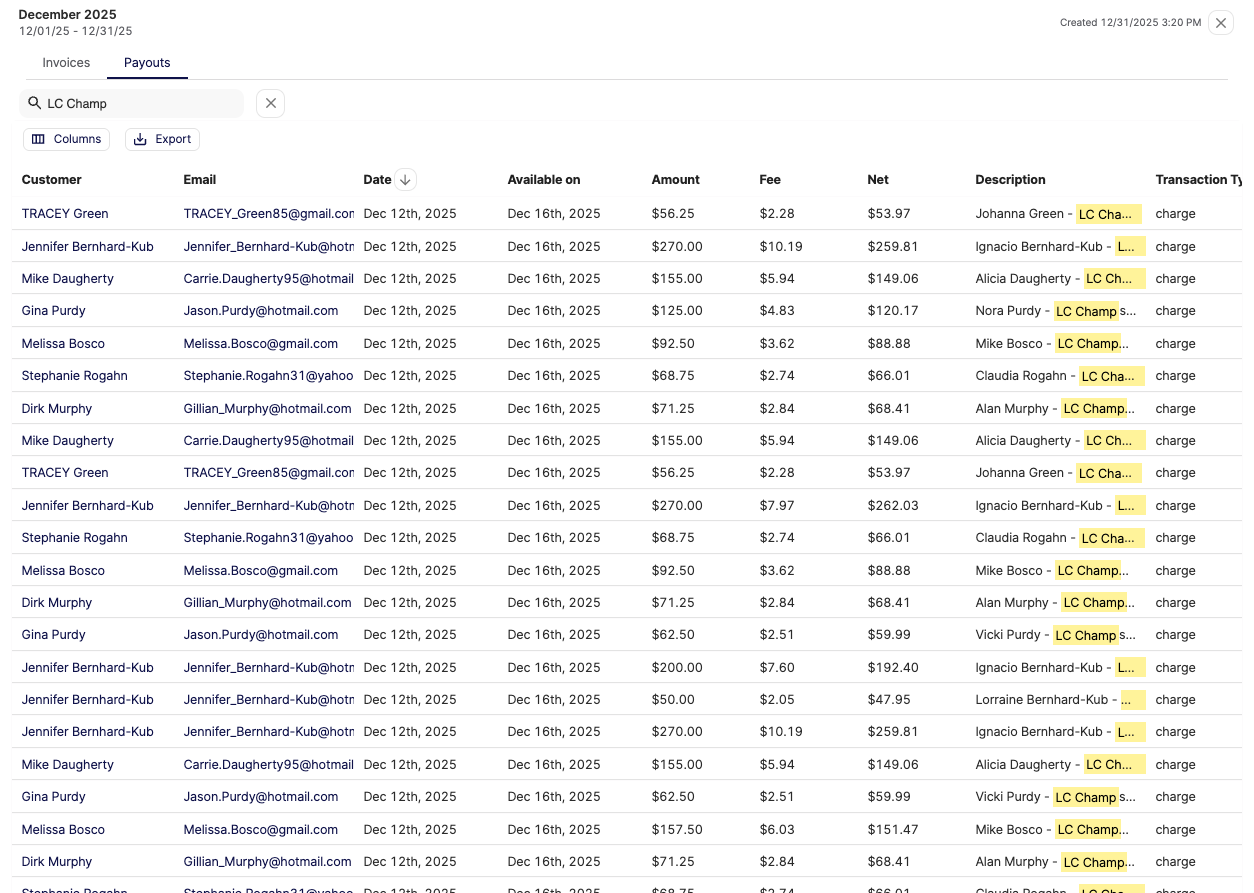
Or you can get a snapshot for specific programs or meets over this month:
Then when you are ready - you can also export the report into either a PDF or a Spreadsheet.
The export will ONLY contain the data you have on screen - so any categories or columns you add or remove and any search items you narrow down to will be all that is included in the report.
The payouts will be the best source of information for rectifying your PAYOUTS.
You can take all the AVAILABLE ON dates to match to the PAYOUT date.

QUESTION: What if my payout doesn't match the the charges?
ANSWER: It could be there was a charge from a previous month (perhaps a past due payment that was finally paid) that was not included in the current report. You'll need to run a new report for a wider stretch of time to try and capture it.
If that does not rectify the report, then you can contact team@commitswimming.com to help further search for this.
QUESTION: Can I also get this info within my Stripe account directly?
ANSWER: Partially. The Stripe account WILL show you the payouts and will provide information about the amounts and charges included on the payout - but it will not show you directly which members the charges originated from. This is done directly in Commit.
QUESTION: Can I import my financial report into my accounting software?
ANSWER: Using the spreadsheet export will provide you a file type that most all accounting software's accept.