
Website - Pages
The pages menu of the website editor is where you can come to view all your pages to manage and edit the content within it.
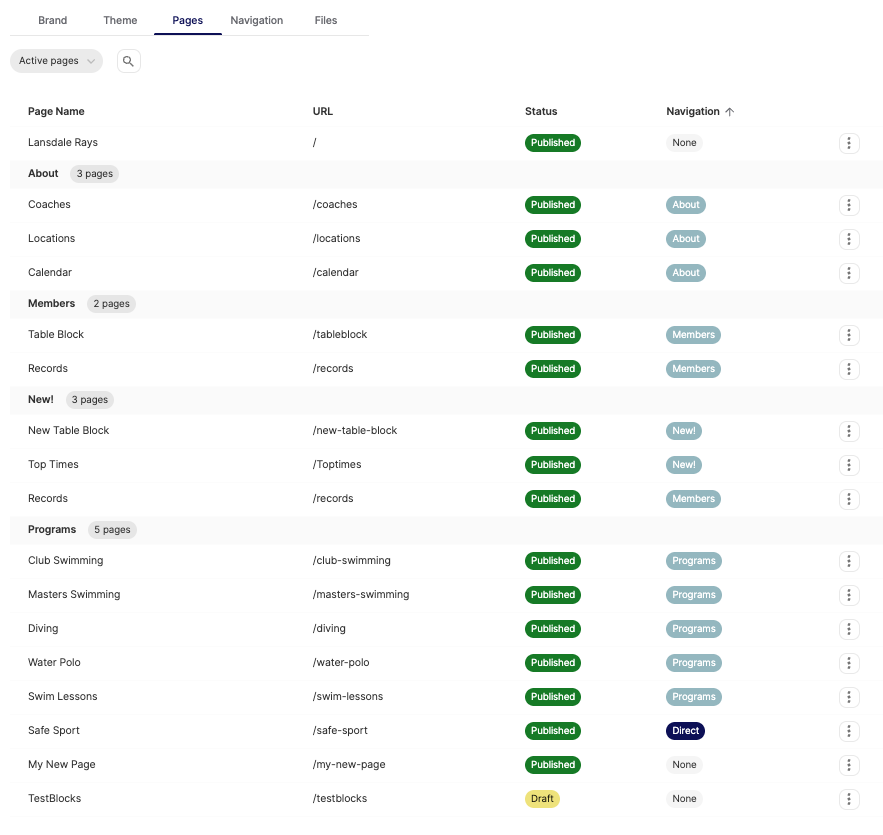
You can quickly view your live site by clicking your URL on the top left, add a new page to your site by clicking NEW PAGE, or preview your site locally by clicking PREVIEW.

When you click NEW PAGE, you can give the page a name (the URL will auto fill, but you can customize this if you'd like) and select if you are working on the page as a DRAFT (i.e. not live) or if it is PUBLISHED (meaning it is live immediately)
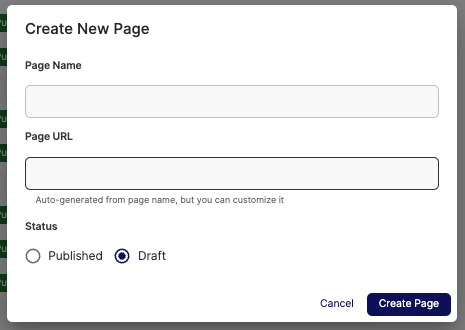
Once a page is published, it cannot be both live and draft - though you change it to draft to make changes. Please be mindful that if you have a page you are making changes to, the changes will either be live right away OR you will have to remove the page temporarily until you have it ready to publish again.
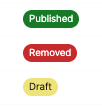
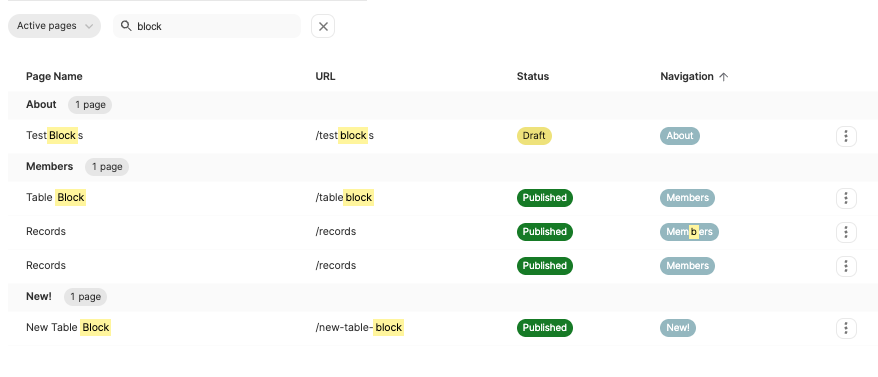
The STATUS of the page will show you if it is PUBLISHED, DRAFT, or REMOVED.
The NAVIGATION of the page will tell you if it's "part of a dropdown" (like in the example below, it is in a dropdown menu called "Programs), if it is a "direct" page, or "none (which means it is hidden)
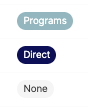
If the Navigation field is blank, that means it is not a page just the name of the dropdown menu (this helps to easily view which pages are organized into which dropdown menus from this view)
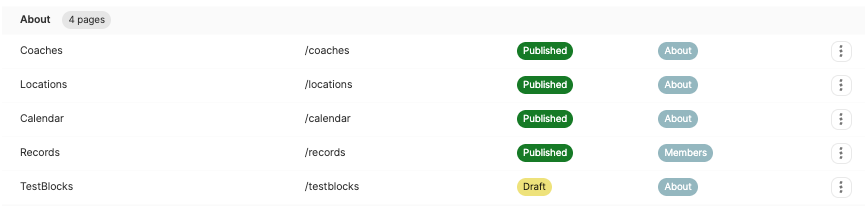
When you are viewing your list of pages, you can click the actions icon to access the available actions on the page:
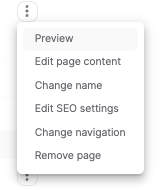
Preview - will take you to a preview of the specific page in your browser.
Edit page content - will take you into the PAGE EDITOR.
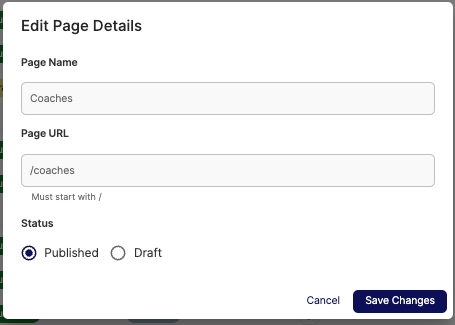
Change name - will allow you to change the page name, the URL, and change the status of the page.
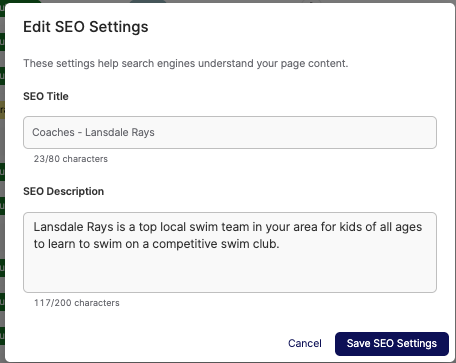
Edit SEO SETTINGS - will allow you to edit your search engine optimization settings on the page.
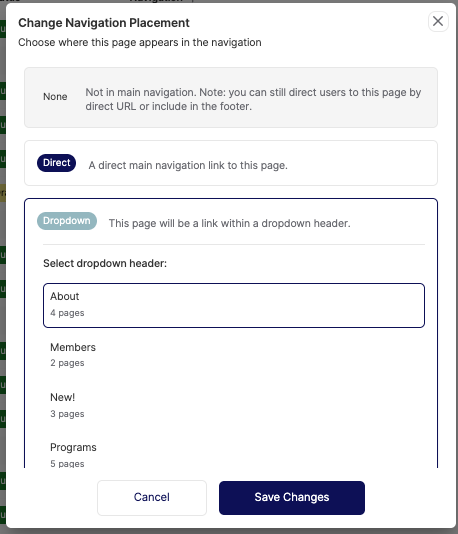
Change navigation - will allow you change how the page is mapped to on your site within the navigation items.
- None - will make it hidden
- Direct - will make it a direct option on the header
- Dropdown - you can select a dropdown menu to put the page inside of
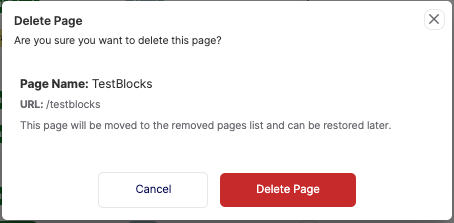
Remove page - will you to delete the page.
Note: The HOME page (the top page on your pages list) has limited options.
In this example, "LANSDALE RAYS" is the home page

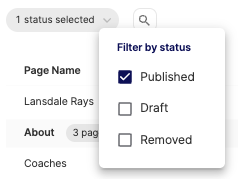
You can easily filter by the status of the pages, and view only removed pages (incase you need to restore an old page)
You can use the search bar to quickly locate pages
Have any questions or issues? Contact us at team@commitswimming.com